Your project notes are finished. The headings are clear, the checklist is complete, and the screenshots explain the details. There is just one more step: turning that Markdown file into a document someone else can review or share.
Markdrop brings that step into your browser. It is a Markdown to PDF and Word converter with an editable source panel, a live A4 preview, and support for images you select from your computer. You can move from a plain-text draft to a PDF or an editable `.docx` file without creating an account or uploading your document to a conversion server.
From a Markdown draft to a shareable document
Markdown is useful for keeping writing focused. A few characters create headings, lists, links, and tables, while the source stays easy to edit. When the next person needs a PDF attachment or a Word document, those same notes need a different form.
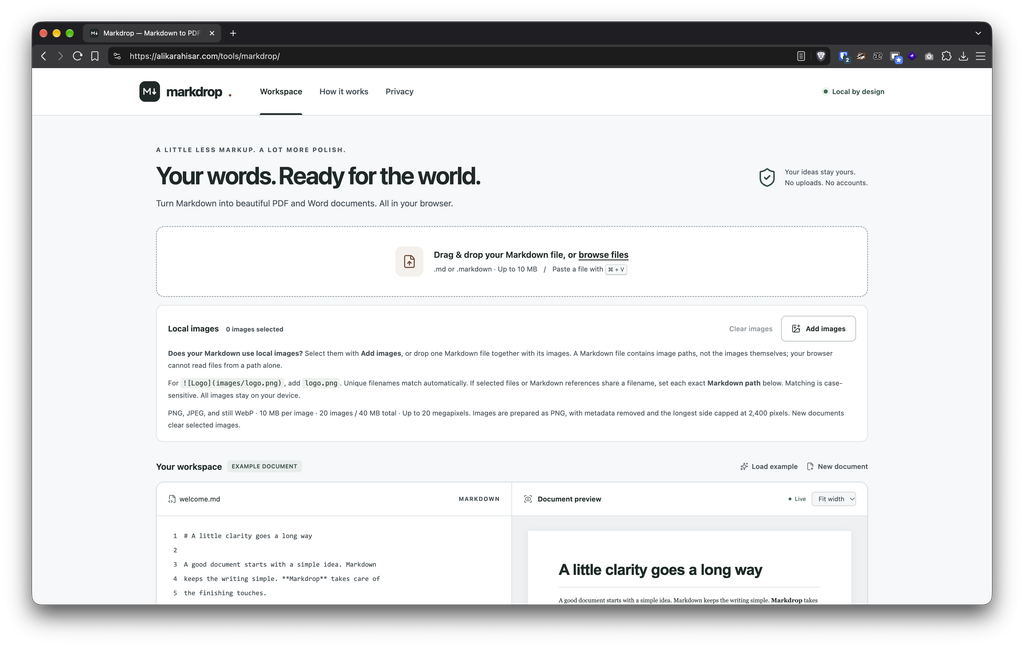
With Markdrop, you can open a `.md` or `.markdown` file, edit its source, and see a formatted document beside it. The preview uses an A4 layout with readable typography for headings, paragraphs, tables, quotations, and code blocks.
That makes it useful for everyday handoffs: a project proposal with a diagram, meeting notes with action items, documentation for a colleague, or a brief that needs another round of editing in Word.
How to convert Markdown with Markdrop
1. Bring in your file or start writing
Drag a Markdown file into the workspace, choose browse files, or type directly into the editor. Markdrop accepts Markdown files up to 10 MB.
You can also paste a copied file when your browser and operating system make it available through the clipboard. If the clipboard contains only a filename or a path, choose the file through the browser instead. Ordinary text can be pasted straight into the editor.
2. Add any local images
A Markdown image reference usually points to a separate file:
```markdown

```The Markdown document contains the path `images/overview.png`, not the image itself. Selecting the document does not give your browser permission to read that image from your computer.
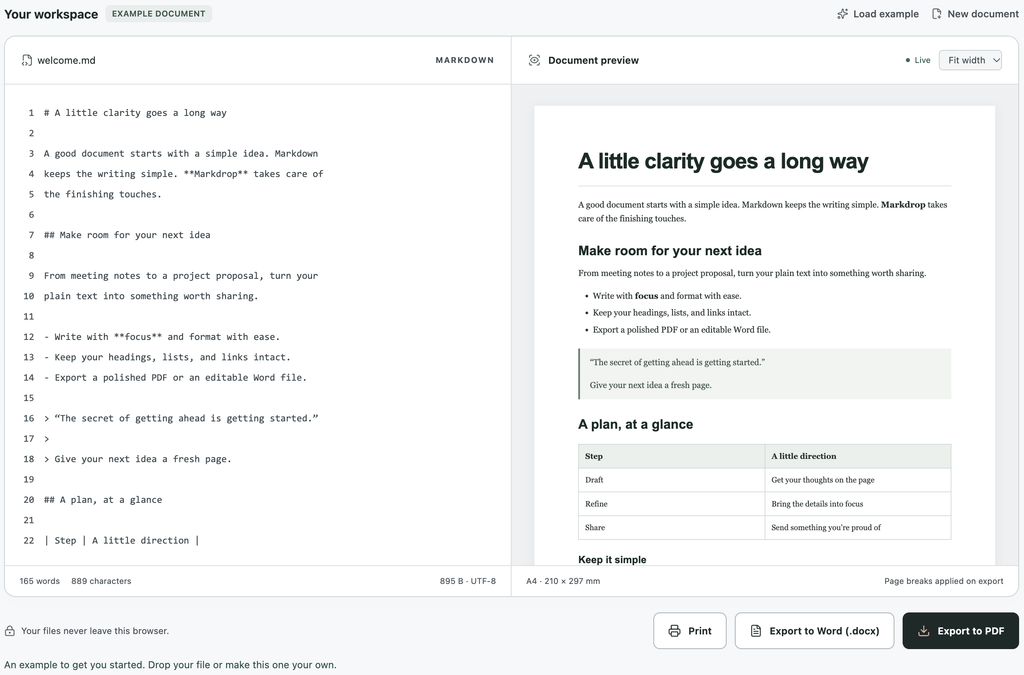
Use Add images to select it, or drop one Markdown file together with its images. Markdrop supports PNG, JPEG, and still WebP files and prepares them locally for the preview and both export formats.
3. Review the preview and document checks
Edit your Markdown on the left and review the document on the right. Headings, emphasis, lists, tables, and supported images update as you work.
The Document checks section calls out issues that could affect the result, such as a missing image or an ambiguous filename. Resolve those issues before exporting, or explicitly choose to include visible placeholders for unavailable images.
4. Download a PDF or Word document
Choose Export to PDF for a rendered document or Export to Word (.docx) for editable text with embedded images. Downloads use your document’s filename, which you can also edit in the workspace.
For example, `project-brief.md` becomes `project-brief.pdf` or `project-brief.docx`.
Local images, with clear path matching
Image folders often contain familiar filenames: `logo.png`, `screenshot.png`, or `diagram.webp`. Markdrop can match a unique filename automatically, but it also lets you enter the exact Markdown path for each selected image.
Suppose your document uses both of these references:
```markdown


```Those paths may point to different images. Markdrop asks you to resolve the mapping instead of guessing which logo belongs in each position. Set the paths beside the selected images to `brand/logo.png` and `footer/logo.png`, and the preview updates accordingly.
Paths with spaces also work with standard Markdown syntax:
```markdown

```Matching is case-sensitive. A reference to `Photo.jpg` is different from one to `photo.jpg`, so the workspace makes path checks part of the conversion process.
Your document is processed on your device
File reading, Markdown parsing, image preparation, and document generation happen in the browser. Markdrop does not upload your document or selected images, and the application does not include analytics or persistent document storage.
It does need an internet connection to load its third-party libraries from CDNs. Those library requests do not include your document contents, but they mean Markdrop should not be described as a fully offline application.
Remote image URLs do not load automatically. To include an image from a website, save an appropriate local copy, select it through Add images, and update the Markdown reference. This also keeps document rendering from silently contacting image hosts.
Selected images are prepared as PNG files with the original image metadata removed. Their longest side is limited to 2,400 pixels for export, so keep your originals when full-resolution images matter.
Choose the output that suits the next step
Word is useful when the recipient needs to revise the document. Markdrop exports editable text, native lists and tables, and embedded images. Markdown image descriptions are also carried into the Word file.
PDF is useful for a rendered version of the document, with an important distinction: Markdrop’s PDF export uses page images. Its text is not selectable, and the resulting PDF is not tagged for accessibility. If searchable text or accessible publishing is a requirement, choose the Word output and use a suitable document workflow afterward.
The A4 preview is a continuous sheet. Page breaks, table widths, and typography can differ in the exported files, so review the result before sharing it. The browser’s Print option is also available, including as an alternative for documents that exceed the PDF renderer’s size limits.
A few details to check before you export
Markdrop supports up to 20 selected images, with a 10 MB limit per image and a 40 MB combined limit for both the original image collection and the prepared PNG collection. Large dimensions, damaged files, and unsupported formats produce explanatory messages. SVG, GIF, HEIC, TIFF, and animated PNG or WebP files need conversion to a supported still image first.
Some Markdown extensions also need attention. Mermaid diagrams and math code blocks remain source code; they are not rendered as diagrams or equations. You can include a prepared image when a visual result is needed. YAML front matter is treated as document content, while local file links and internal anchors remain plain text.
Your workspace lasts only for the current session. Reloading or closing the page clears the text and selected images, so keep your source files and export your work before leaving.
Give your next draft a finished form
Start with a meeting note, a project brief, or a page of documentation. Add its images, check the preview, and choose the format that fits the person receiving it.